
Why enquiries, not visitors
A site with 500 visitors and 20 enquiries is doing better than one with 5,000 visitors and 5. Visitor numbers tell you about reach; enquiries tell you whether the website pays for itself. They also let you judge everything else you spend time and money on. If your Google Business Profile sends you a third of your visitors but half of your enquiries, that tells you where to put your effort.
For most service businesses, an enquiry is one of these:
- a tap on a WhatsApp link or button
- a tap on a phone number
- a click on an email address
- a contact or quote form that has actually been sent
- a booking made through an online booking tool
A tap isn’t a guaranteed enquiry: someone might tap your number and then hang up. But it’s the best signal a website can measure. Every so often, compare it with the enquiries you actually received, so you know how closely the two match.
What GA4 tracks on its own, and why it isn’t enough
GA4’s enhanced measurement switches on a few automatic events. Two of them sound promising but fall short:
- Outbound clicks record clicks on links to other websites. A WhatsApp link (wa.me) counts, but it’s mixed in with every other outbound link, such as your Facebook page or a supplier’s website. Phone and email links aren’t clearly covered at all.
- Form interactions record when someone starts and submits a form. They can’t tell a contact form from a newsletter sign-up, and they can miss forms that send without loading a new page.
The reliable answer is to send your own event.
Step 1: send a generate_lead event
Google’s recommended event name for an enquiry is generate_lead. Use it rather than inventing your own, and add a method so you can tell WhatsApp from phone from email later.
If your site already has the Google tag (gtag.js) installed, this snippet handles the links. It goes just before the closing </body> tag, or wherever your site lets you add custom code:
<script>
document.addEventListener('click', function (e) {
  var link = e.target.closest('a[href^="tel:"], a[href^="mailto:"], a[href*="wa.me/"]');
  if (!link || typeof gtag !== 'function') return;
  var href = link.getAttribute('href');
  var method = href.indexOf('tel:') === 0 ? 'phone'
             : href.indexOf('mailto:') === 0 ? 'email' : 'whatsapp';
  gtag('event', 'generate_lead', { method: method });
});
</script>
For forms, send the same event only once the form has actually gone, from the code that shows your “thanks, we’ll be in touch” message:
gtag('event', 'generate_lead', { method: 'form' });If your form sends people to a thank-you page instead, you can skip the code. In GA4, go to Admin → Data display → Events → Create event and create generate_lead from page_view events where the page location contains your thank-you page’s address, such as /thank-you.
This is how our own site does it: every WhatsApp, phone and email link, and both versions of our contact form, send generate_lead with a method.
Using Google Tag Manager? The same thing is a GA4 event tag named generate_lead, fired by a “Just Links” click trigger where the Click URL starts with tel: or mailto:, or contains wa.me. Turn on the built-in Click URL variable first.
Step 2: mark it as a key event
- Send at least one
generate_leadyourself (see Step 4 for how to test). The Events page only lists events from the last 28 days. - In GA4, go to Admin → Data display → Events and open the Recent events tab.
- Find
generate_leadand click the star next to it. It then appears under Key events.
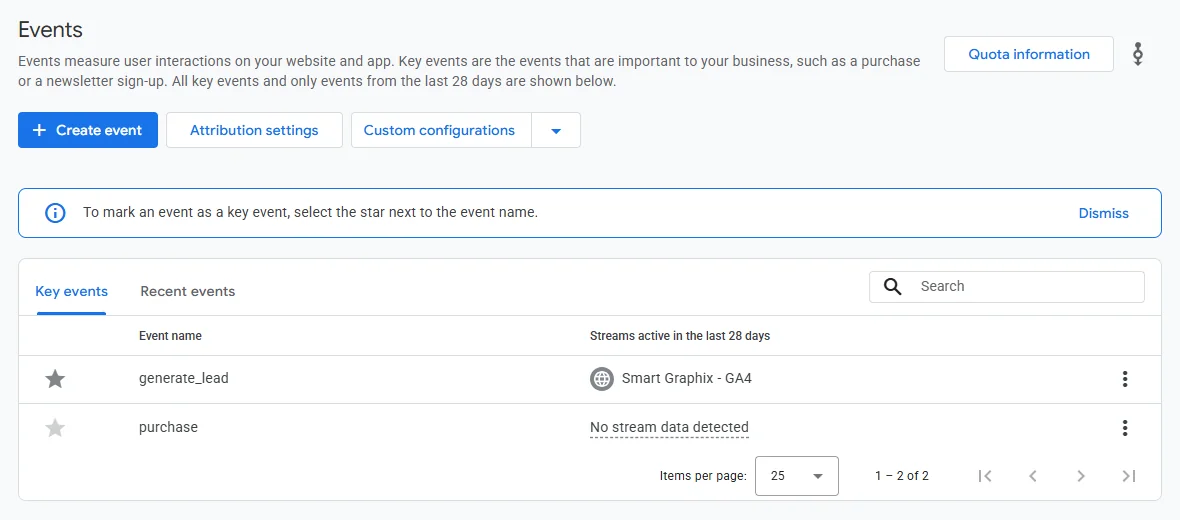
generate_lead starred as a key event. GA4 marks purchase as a key event by default; you can ignore it if you don’t sell online.Don’t want to wait? On the same page, Create event lets you set up generate_lead in advance with Mark as key event switched on.
Three things to know. You need editor access to the property. It can take up to 24 hours for a new key event to show in the standard reports. And it only counts from the moment you mark it: it doesn’t go back and count past enquiries. A standard property can have up to 30 key events, so there’s plenty of room.
Step 3: make “method” visible in your reports
GA4 receives the method you send, but won’t show it in reports until you register it. Go to Admin → Data display → Custom definitions → Create custom dimension, name it “Enquiry method”, set the scope to Event and choose method as the event parameter. It starts appearing in reports after a day or two.
Step 4: test it
- Open your website on your phone and tap your WhatsApp button, then your phone number. You can cancel the call and close WhatsApp straight away.
- In GA4, open Reports → Realtime. Within a few minutes,
generate_leadshould appear in the event count card. - For a closer look, DebugView (under Admin → Data display) shows each event and its details as they arrive, while you browse your site with Google’s Tag Assistant connected.
Nothing showing? The most common causes are the Google tag missing from that page, a caching or optimisation plugin serving an old version of the page, or a cookie banner that’s blocking Analytics until you accept.
Reading the numbers
Once enquiries are coming through, these are the useful questions:
- Where do enquiries come from? Open Reports → Acquisition → Traffic acquisition and set the key events column to
generate_lead. You’ll see enquiries by channel: Google search, your Business Profile (if you tag it, below), social media, direct visits. - Which pages produce them? Reports → Engagement → Pages and screens, with the same key events column.
- How do people prefer to get in touch? Use the Enquiry method dimension in a report or an exploration to split them by WhatsApp, phone, email and form.
Four settings worth five minutes
- Decide how long to keep detailed data. In Admin → Data collection and modification → Data retention, event data can be kept for two months or 14. Fourteen gives your explorations more history. Two is the better fit if you rely on the analytics exception instead of a cookie banner, because the rules expect visitor-level data to be kept only as long as it’s needed. The standard reports aren’t affected either way.
- Tag your Business Profile link. Add tracking tags to the website link on your Google Business Profile, for example
?utm_source=google&utm_medium=organic&utm_campaign=gbp, so visits from your profile show separately instead of being mixed in with ordinary Google searches. Google’s free Campaign URL Builder makes the link for you. - Remember what GA4 can’t see. Calls and direction requests made straight from your Business Profile never touch your website. You’ll find those in your Business Profile’s own performance figures.
- Leave out your own visits. If your office has a fixed IP address, define it as internal traffic in your web stream’s tag settings and switch the internal traffic filter on, so your own test taps don’t count as enquiries.
Privacy: what not to send
Never send names, phone numbers or email addresses to Google Analytics. Google’s rules don’t allow personal information in Analytics, and you don’t need it. The snippet above sends only the method, never the number or address someone tapped.
And because these events run through Google Analytics, the cookie rules apply too. Our guide to cookie banners and the UK rules explains when you need consent.