
What Search Console tells you, and what it doesn’t
Think of it as the view from Google’s side. Search Console shows what happens before someone reaches your website: the searches you appeared in, roughly where you ranked, and how often people clicked. It’s also where Google tells you about problems reading your site, from pages it won’t index to security issues.
Google Analytics covers what happens after the click: which pages people view and whether they get in touch. You want both, and both are free.
Setting it up
- Use a Google account the business owns. Not your web designer’s, and not a staff member’s personal Gmail. If someone else set it up years ago, ask them to add you as an owner (see “Giving people access” below).
- Add a Domain property. Go to search.google.com/search-console, choose Domain and type your domain without https:// or www, for example
yourbusiness.co.uk. A Domain property covers every version of your site at once: with and without www, http and https, and any subdomains. - Verify it with a DNS record. Google gives you a line of text (a TXT record) to add to your domain settings, wherever you manage your domain: 123 Reg, GoDaddy, IONOS or Cloudflare, for example. Some providers let Google add it for you in a couple of clicks. It can take a little while to go through, so if verification fails at first, try again later.
- Can’t get into your domain settings? Choose URL prefix instead and verify with an HTML file, a meta tag or your Google Analytics tag. It only covers the exact address you enter, so use the one your site actually loads on, such as
https://www.yourbusiness.co.uk/. - Submit your sitemap (see below), then give it a few days to fill up with data.
Giving people access without sharing passwords
Never hand over your Google password. In Search Console, go to Settings → Users and permissions → Add user, enter the person’s email address and choose Full (sees all the data and can take some actions) or Restricted (view only, for most data). Owners can add and remove other people, so keep the owner role for yourself.
The same goes for agencies. Your Search Console, like your Business Profile and Analytics, should belong to you, with everyone else added as a user. When you stop working with someone, remove them.
The Performance report: how people find you
This is where you’ll spend most of your time. Open Performance → Search results and you’ll see four numbers:
- Total clicks: how many times someone clicked through to your site from Google Search.
- Total impressions: how many times a link to your site appeared in someone’s results, whether or not they scrolled down to it.
- Average CTR: clicks divided by impressions.
- Average position: roughly where you appeared. Lower is better; about 1 to 10 usually means the first page.
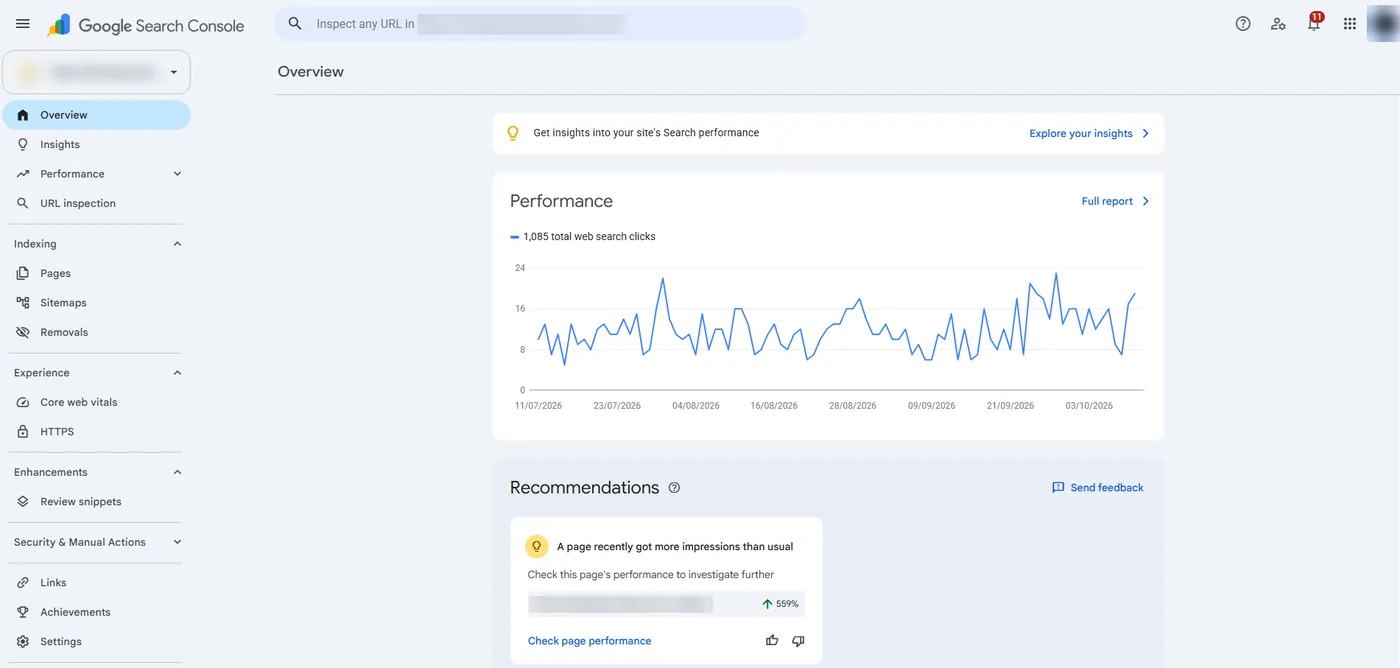
The tabs below the chart are where it gets useful:
- Queries shows the actual words people typed. Look for your services and areas, such as “emergency plumber Romford”, and note the ones you appear for but rarely get clicks from.
- Pages shows which pages earn those clicks.
- Countries lets you filter to the United Kingdom. Worth doing if you only serve local customers, because stray overseas impressions can drag your averages around.
- Devices splits mobile from desktop, so you know which one your customers mostly use.
Two newer features are worth knowing about. The branded queries filter separates searches that include your business name from everything else. Branded searches mostly come from people who already know you; growth in non-branded searches is the clearer sign that your SEO is working. It appears on top-level properties for sites with enough search data. Annotations let you pin a note to a date on the chart, such as “new website launched” or “added a prices page”, so in six months’ time you can see what changed and when.
A practical tip: searches where your average position is somewhere around 8 to 20 are often your best opportunities, because Google already sees you as relevant. Better page titles, more useful content and more reviews can lift them onto the first page. And if a search shows plenty of impressions but very few clicks, rewrite that page’s title and description to match what people were looking for.
The Page indexing report: what to ignore and what to fix
Open Indexing → Pages. The chart splits your addresses into Indexed (they can appear in Google) and Not indexed. A long list of “not indexed” reasons looks alarming, but most of them are normal:
- Page with redirect and Alternate page with proper canonical tag are usually fine: Google is skipping old or duplicate addresses and indexing the right version instead.
- Excluded by ‘noindex’ tag is fine if you meant it (a thank-you page, for example) and a problem if it’s on a service page.
- Not found (404) is fine for pages you deleted on purpose. If they used to get visitors or links, redirect them to the closest live page.
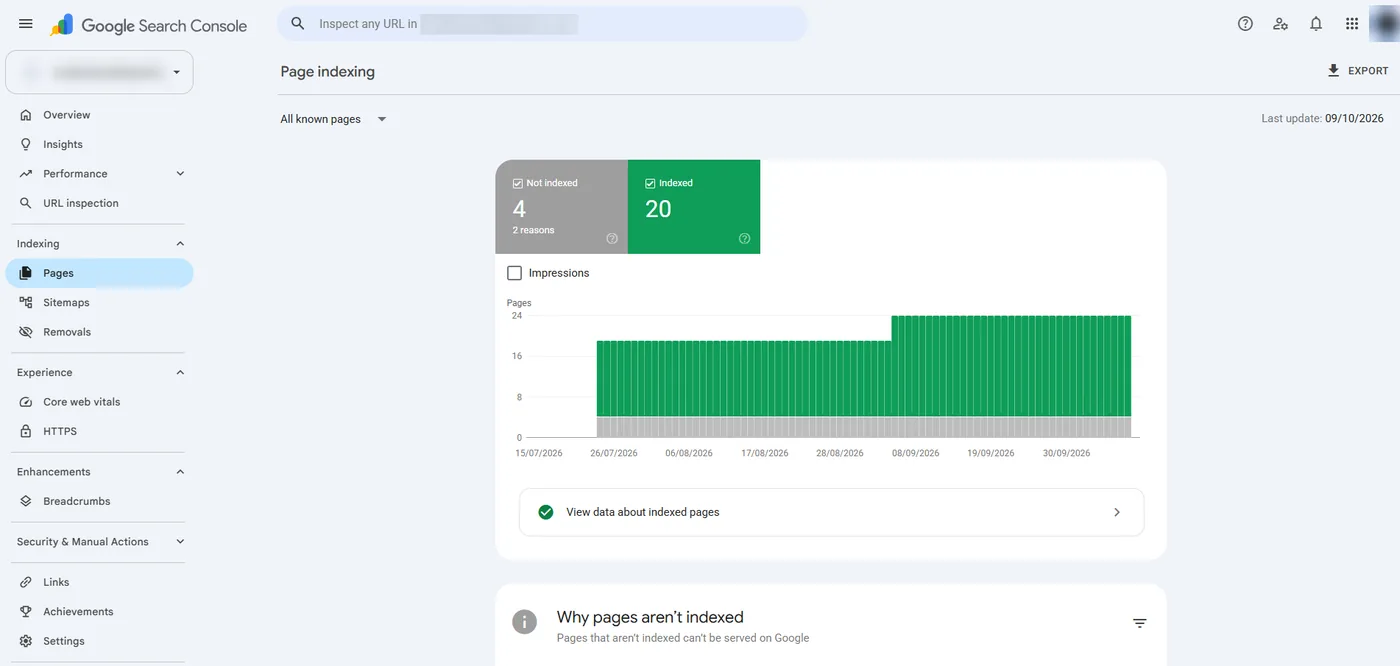
What matters is whether your important pages (home, services, areas, contact) are indexed. Two statuses deserve a closer look if they include those pages:
- Discovered – currently not indexed: Google knows the page exists but hasn’t crawled it yet. It’s common on new sites and new pages. Give it time, and make sure the page is linked from your menu or from other pages.
- Crawled – currently not indexed: Google has read the page and decided not to index it, for now. That’s often a sign the page is thin, or too similar to another one. Make it more useful and more distinct, then request indexing.
Also check for Server error (5xx). If it shows up on real pages, your hosting needs attention.
Sitemaps: give Google a list of your pages
A sitemap is a file listing the pages on your site. Most website platforms make one for you: WordPress has one at /wp-sitemap.xml, or /sitemap_index.xml if you use Yoast SEO, while Squarespace, Wix and Shopify publish theirs at /sitemap.xml.
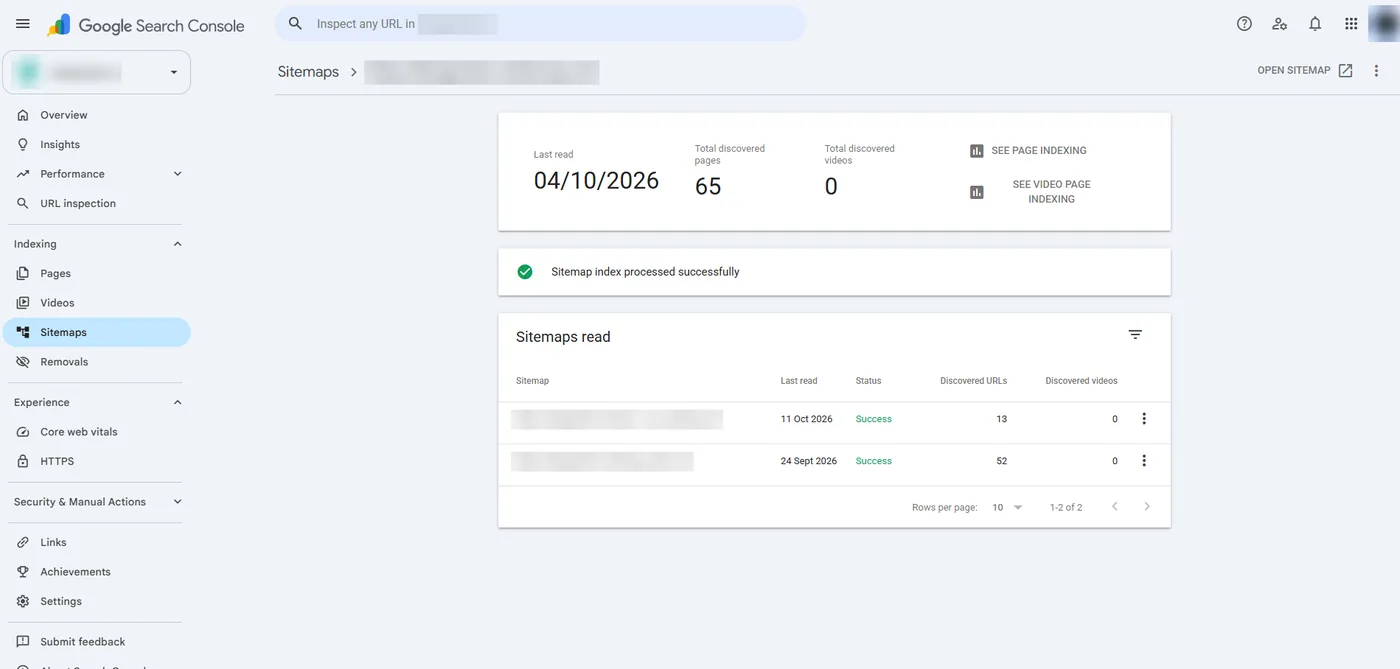
In Search Console, open Indexing → Sitemaps, type the sitemap address under “Add a new sitemap” and press Submit. You want the status to say Success. You only need to do this once, because Google keeps checking it; resubmit after a big change, such as a new website.
URL Inspection: check a page, and ask Google to index it
When you publish a new page, or make a big change to an important one, you can ask Google to look at it sooner:
- Paste the page’s full address into the Inspect bar at the top of Search Console and press Enter.
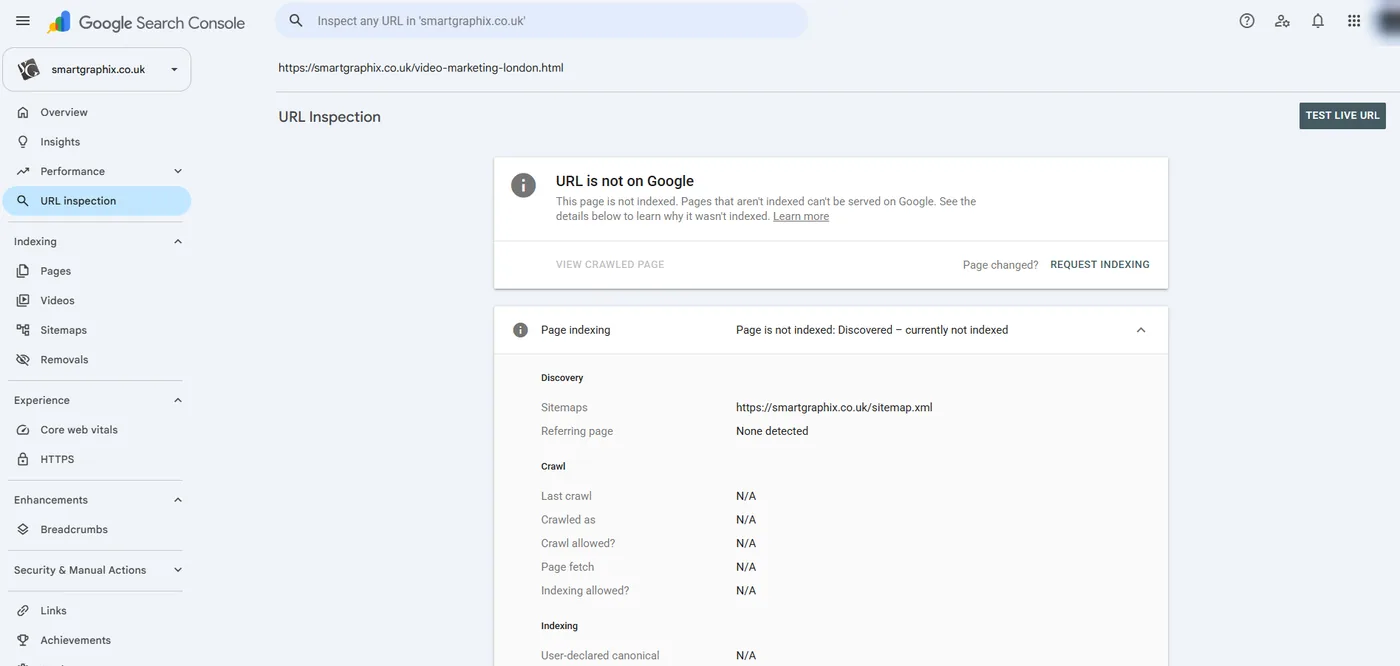
- Read the result. “URL is on Google” means it’s indexed; “URL is not on Google” comes with a reason.
- Optionally, click Test live URL to check that Google can load the current version of the page. It takes a minute or two.
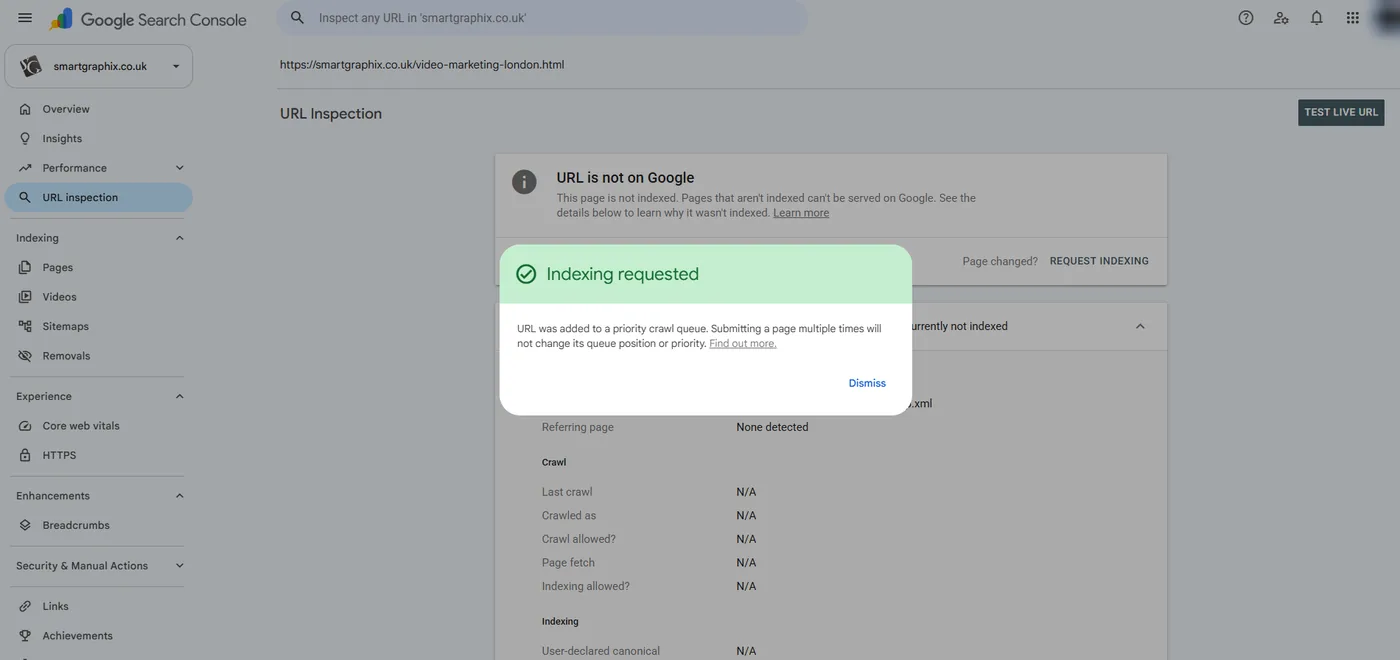
- Click Request indexing. After a quick check, the page joins Google’s priority crawl queue and you’ll see “Indexing requested”.
- Wait. Google says indexing usually takes a day or so, but can take a week or two, and a request doesn’t guarantee the page will be indexed. Don’t request the same page again: Search Console itself says that submitting a page more than once won’t change its place in the queue. There’s also a daily limit.
For more than a handful of pages, update your sitemap instead.
Newer reports: AI features and social profiles
Generative AI performance. Since June 2026, Google has been rolling out reports showing how often your pages appear in AI Overviews, AI Mode and Discover’s AI features. For now they count impressions rather than clicks, and only some sites have them. If yours does, it’s an early signal of whether Google’s AI is drawing on your pages; we cover what influences that in how Google’s AI describes your business.
Social and video profiles. Since July 2026, you can add your Instagram, TikTok, X and YouTube profiles as “platform properties” to see how that content performs in Google Search. If you post short videos, it’s worth a look alongside our simple SEO and short-form video plan.
Link it to Google Analytics
If you use Google Analytics 4, link the two. In Analytics, go to Admin → Product links → Search Console links, choose your Search Console property and your web stream, and submit. You’ll need to be an owner in Search Console and an editor in Analytics. Our guide to tracking website enquiries in Google Analytics covers the rest of the setup.
A ten-minute monthly check
- Performance: compare the last three months with the three before. Are clicks up, flat or down? The weekly view smooths out the day-to-day noise.
- Queries: switch to non-branded searches if you have the filter. Any new searches for your services or areas?
- Pages: are your service pages getting clicks, or is everything landing on the home page?
- Page indexing: are all your important pages indexed? Any new 404s or server errors?
- Security & Manual Actions: both should say no issues detected.
- Annotate anything you changed this month, so next month’s numbers make sense.
Search Console also emails owners when it finds a serious problem, so make sure those emails go to an inbox someone actually reads.
What’s changed recently
- November 2025: custom annotations on Performance charts, and the branded queries filter, which rolled out to all eligible sites from March 2026.
- December 2025: weekly and monthly views in the Performance report, and an AI-powered configuration that sets up filters and comparisons from a request written in plain English.
- June 2026: Generative AI performance reports, rolling out to some sites.
- July 2026: platform properties for Instagram, TikTok, X and YouTube, available to everyone from 29 July.